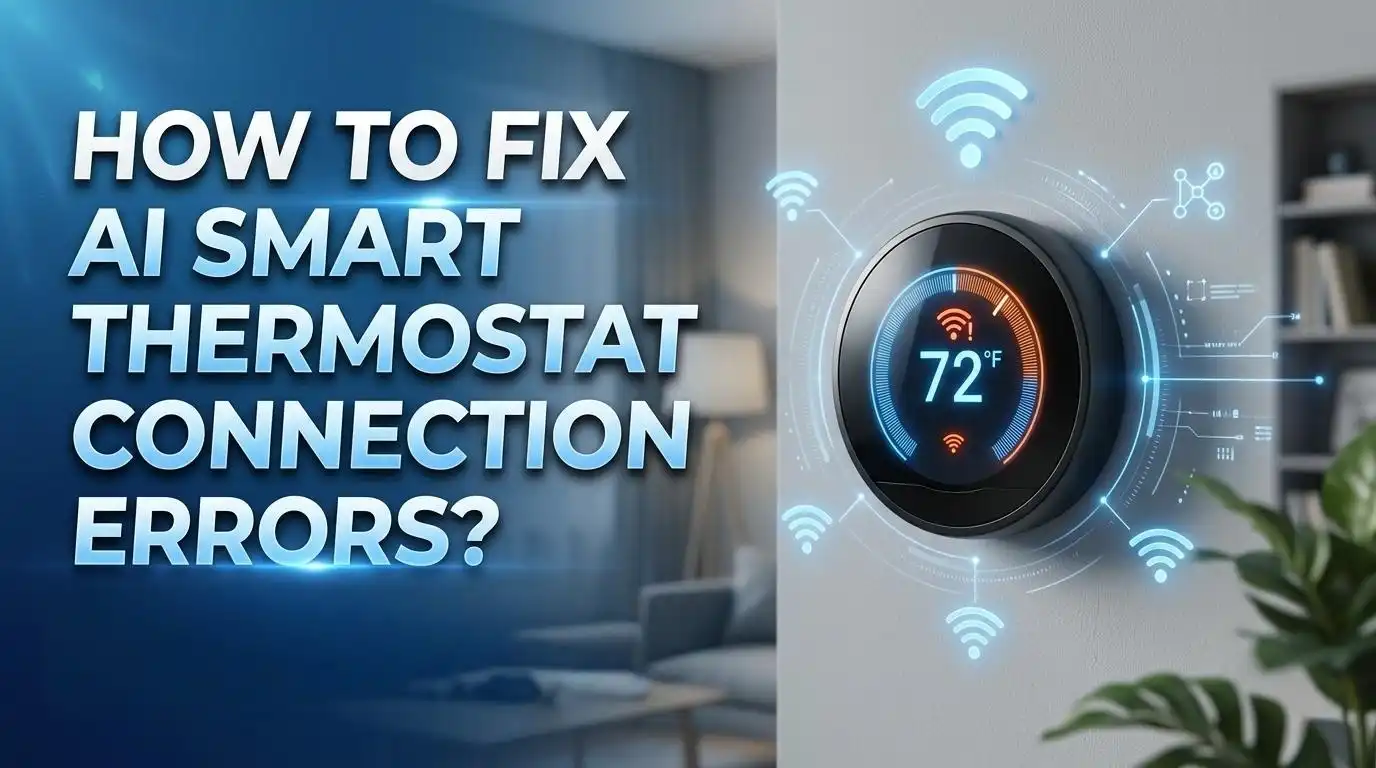
How To Fix AI Smart Thermostat Connection Errors?
You just installed your new AI smart thermostat, and it refuses to connect. Or maybe it worked fine for weeks and suddenly dropped offline. Either way, you are staring at a device on the wall that should be smart but is acting anything but.
AI smart thermostat connection errors are one of the most common frustrations for smart home owners. These errors can prevent you from adjusting your home temperature remotely, ruin your energy saving schedules, and break automations you spent hours setting up.
This guide walks you through every possible cause and solution for AI smart thermostat connection errors. Each method includes clear steps and honest pros and cons so you can choose the right fix for your situation.
By the end of this post, you will understand exactly why your AI thermostat loses its connection and how to stop it from happening again. Let us get started.
Key Takeaways
- Check your WiFi band first. The majority of AI smart thermostats only support 2.4 GHz WiFi networks. If your router broadcasts a combined 2.4 GHz and 5 GHz network under one name, your thermostat may struggle to connect or stay connected. Splitting these bands into separate network names is often the fastest fix.
- A simple power cycle solves many connection errors. Before you dive into advanced troubleshooting, restart both your thermostat and your router. This clears temporary software glitches and refreshes the connection between devices.
- Firmware and app updates matter more than you think. Outdated firmware on your thermostat or an old version of the companion app can create connection bugs. Always check for updates before attempting other fixes.
- Router placement and signal strength affect reliability. If your thermostat sits far from your router or behind thick walls, the WiFi signal may be too weak for a stable connection. A WiFi extender or mesh network can solve this.
- Factory reset is a last resort, not a first step. A factory reset erases all your schedules, preferences, and learned behaviors. Try every other solution before going this route, and always document your settings first.
- IP address conflicts and DNS issues are hidden culprits. Too many devices on your network can cause address conflicts that knock your thermostat offline. Assigning a static IP to your thermostat often prevents repeated disconnections.
Understanding Why AI Smart Thermostats Lose Connection
AI smart thermostats depend on a constant internet connection to function at their full potential. They use WiFi to communicate with cloud servers, receive weather data, learn your habits, and respond to app commands. When that connection breaks, the thermostat can still control your HVAC system locally, but you lose remote access and smart features.
The most common reasons for connection loss include weak WiFi signals, incompatible router settings, firmware bugs, power interruptions, and network congestion. Your thermostat is essentially a small computer with limited processing power. It cannot handle connection issues as well as your phone or laptop can.
AI features like learning algorithms and predictive scheduling require consistent cloud communication. If the connection drops frequently, these features cannot gather enough data to work properly. You may notice your thermostat stops adapting to your routine or fails to pre-cool or pre-heat your home at the right times.
Environmental factors also play a role. Thermostats are often mounted in hallways or living areas that may be far from the router. Walls, floors, and large appliances between the router and thermostat weaken the WiFi signal. Electronic devices like microwaves, baby monitors, and cordless phones can create interference on the 2.4 GHz band that most thermostats use.
Understanding these root causes helps you target the right fix. Instead of randomly trying solutions, you can diagnose the specific issue and resolve it quickly.
Check Your WiFi Network and Signal Strength
The first and most important step is verifying that your WiFi network is working properly. Open your phone or laptop and confirm you can connect to the internet. If your other devices are also having trouble, the issue is with your network, not your thermostat.
Next, check the WiFi signal strength near your thermostat. Walk to where the thermostat is installed and look at the WiFi indicator on your phone. If you see only one or two bars, your thermostat is likely experiencing the same weak signal. Most smart thermostats need a strong, stable WiFi signal to maintain their connection.
You can improve signal strength in several ways. Moving your router closer to the thermostat is the simplest option. If that is not possible, a WiFi range extender placed between the router and thermostat can boost the signal. Mesh WiFi systems are even better because they create a blanket of coverage throughout your home.
Make sure no large metal objects, thick concrete walls, or major appliances sit directly between your router and thermostat. These obstacles significantly reduce WiFi signal penetration.
Pros of checking WiFi first: This is free, requires no technical skills, and solves the problem in many cases. Cons: If your home layout makes it hard to improve signal strength, you may need to invest in a WiFi extender or mesh system. Also, good signal strength does not rule out other problems like incompatible router settings.
Restart Your Thermostat and Router
A power cycle is the classic fix for a reason. Restarting both your thermostat and your router clears temporary memory errors, refreshes IP address assignments, and re-establishes the connection from scratch.
Start with your router. Unplug it from the wall, wait 30 seconds, and plug it back in. Give it two to three minutes to fully boot up and restore your network. Then move on to your thermostat.
For most AI smart thermostats, you can restart through the device menu. Go to Settings and look for a Restart option. If your thermostat does not have a software restart option, you can pull it off the wall base to disconnect power, wait 30 seconds, and snap it back on. Some thermostats also have a small reset button on the side or back that performs a soft restart.
Do not confuse a restart with a factory reset. A restart simply reboots the device and keeps all your settings, schedules, and preferences. A factory reset erases everything and returns the thermostat to its original state.
After both devices have restarted, give your thermostat a few minutes to reconnect to the WiFi network. Check the thermostat display or companion app to confirm the connection is active.
Pros of restarting: It is quick, free, preserves all your settings, and fixes many temporary glitches. Cons: This is a temporary fix if the root cause is something deeper like a firmware bug or router incompatibility. The problem may return after hours or days.
Verify Your Thermostat Is on the Correct WiFi Band
This is one of the most overlooked causes of smart thermostat connection failures. Almost all AI smart thermostats only work on the 2.4 GHz WiFi band. They do not support 5 GHz networks. If your router uses a single network name (SSID) for both bands, your thermostat might accidentally try to connect to the 5 GHz band and fail.
Modern routers often combine both frequencies under one network name for convenience. This feature is called band steering, and while it works well for phones and laptops, it causes problems for smart home devices.
The fix is straightforward. Log into your router’s admin panel, usually by typing 192.168.1.1 or 192.168.0.1 into your web browser. Find the wireless settings and look for an option to separate the 2.4 GHz and 5 GHz bands into two different network names. For example, name them “HomeWiFi” and “HomeWiFi_5G.” Then connect your thermostat to the 2.4 GHz network only.
If you cannot separate the bands, some routers let you temporarily disable the 5 GHz band during thermostat setup. Once the thermostat connects to 2.4 GHz, you can turn 5 GHz back on.
Pros of band separation: This is a highly effective fix that prevents the thermostat from connecting to the wrong band. It also helps other smart home devices. Cons: You now have two network names to manage. Some family members or guests may connect to the wrong one. Certain newer mesh systems do not easily allow band separation.
Update Your Thermostat Firmware and Companion App
Outdated software is a frequent source of connection errors. Thermostat manufacturers regularly release firmware updates that fix bugs, improve WiFi stability, and add new features. If you skip these updates, your thermostat may develop connection problems that have already been solved.
Check for firmware updates directly on your thermostat. Go to Settings, then Software Update or About, and see if a new version is available. Many thermostats update automatically when connected to WiFi, but if the connection dropped before the update installed, you might be running old firmware.
Equally important is updating the companion app on your phone. Go to your phone’s app store and check for updates to the thermostat’s app. An outdated app can cause sync issues even if the thermostat itself is up to date. App updates often include fixes for communication errors between the app and the thermostat’s cloud servers.
After updating both the firmware and the app, restart your thermostat once more. This ensures the new software loads cleanly.
Be aware that some firmware updates can temporarily cause connection issues. Users have reported thermostats losing WiFi immediately after a firmware update. If this happens to you, a restart usually resolves it. In rare cases, you may need to re-enter your WiFi credentials on the thermostat.
Pros of updating: Fixes known bugs, improves stability, and may add new features. Cons: Updates can occasionally introduce new bugs. Some updates require the thermostat to be online, which creates a catch 22 if the connection is already broken. In that case, you may need to reset and reconnect first.
Re-enter Your WiFi Credentials on the Thermostat
Sometimes the solution is as simple as re-entering your WiFi password. If you recently changed your WiFi password, your router name, or switched internet providers, your thermostat will not be able to connect until you update the credentials.
Navigate to the WiFi settings on your thermostat. This is usually under Settings then Network or WiFi. Select your network name from the list and enter the new password. Make sure you type it exactly right because thermostat keyboards can be tricky to use.
Double check for common mistakes like confusing the letter “O” with the number “0”, or the letter “l” with the number “1.” WiFi passwords are case sensitive, so capitalization matters too.
If your network does not appear in the thermostat’s list of available networks, it could mean the signal is too weak, the router is broadcasting on the wrong band, or the thermostat’s WiFi radio needs a restart.
Also confirm that your phone is on the same WiFi network as the thermostat when setting it up. Many companion apps require both devices to be on the same local network during the pairing process. Turn off mobile data on your phone to prevent it from using cellular instead of WiFi.
Pros of re-entering credentials: Fast and simple. Solves the problem instantly if a password change was the cause. Cons: If the password was not the issue, this step wastes time. Some thermostats require you to go through the entire setup process again after clearing WiFi settings.
Fix Router Configuration Issues
Your router settings can block your thermostat’s connection in ways that are not obvious. Several common configurations cause problems with smart home devices.
MAC address filtering is one issue. If you enabled this security feature, your router only allows devices with approved hardware addresses to connect. You need to find your thermostat’s MAC address (usually in its network settings menu) and add it to your router’s allowed list.
Firewall settings can also block thermostat traffic. Some routers have aggressive firewall rules that prevent smart devices from communicating with their cloud servers. Try temporarily lowering your firewall level to see if the thermostat connects. If it does, adjust the firewall to allow the thermostat’s traffic without disabling protection entirely.
Check your router’s security protocol as well. Most smart thermostats work best with WPA2 Personal encryption. Older protocols like WEP may not be supported, and newer WPA3 can sometimes cause compatibility issues with older smart devices. Set your router to WPA2 or WPA2/WPA3 mixed mode.
Also look at your router’s DHCP settings. Make sure DHCP is enabled so the router can automatically assign IP addresses to devices. If the DHCP pool is full because you have many devices, increase the range.
Pros of fixing router settings: Addresses root causes that other fixes miss. A properly configured router prevents future connection issues for all smart devices. Cons: Requires some technical knowledge to access and modify router settings. Incorrect changes can affect your entire network and all connected devices.
Resolve IP Address Conflicts
An IP address conflict happens when two devices on your network receive the same address. This causes one or both devices to lose their connection. Smart thermostats are especially vulnerable because they often have lower priority than phones and computers on the network.
To check for conflicts, log into your router’s admin panel and look at the list of connected devices. See if any two devices share the same IP address. If your thermostat shows up with a conflicting address, this is likely the cause of your connection errors.
The best long term fix is to assign a static IP address to your thermostat. This reserves a specific address for the thermostat so no other device can take it. In your router settings, find the DHCP reservation or static IP option. Enter your thermostat’s MAC address and assign it an IP outside the normal DHCP range. For example, if your DHCP range is 192.168.1.100 to 192.168.1.200, assign your thermostat 192.168.1.50.
After assigning a static IP, restart both the router and the thermostat to apply the change.
If you have many smart home devices, consider assigning static IPs to all of them. This prevents address conflicts across your entire network and makes troubleshooting easier in the future.
Pros of static IP assignment: Prevents repeated disconnections caused by address conflicts. Makes your thermostat’s connection more reliable. Cons: Requires access to your router settings and basic understanding of IP addressing. If done incorrectly, it can cause new conflicts.
Reduce Network Congestion and Interference
A crowded network can slow down or drop connections for low priority devices like thermostats. If you have dozens of devices on your WiFi, including phones, tablets, laptops, smart TVs, cameras, and speakers, your thermostat may struggle to maintain its connection.
Start by counting how many devices are on your 2.4 GHz network. This band has limited capacity, and each additional device reduces the available bandwidth. Move devices that support 5 GHz to that band to free up space on 2.4 GHz for your thermostat and other smart home gadgets.
Wireless interference from non-WiFi devices is another common problem. Microwave ovens, baby monitors, Bluetooth speakers, and cordless phones all operate near the 2.4 GHz frequency. Using these devices near your thermostat or router can disrupt the WiFi signal.
Try changing your router’s WiFi channel. Most routers auto-select a channel, but the chosen channel may be congested if your neighbors are using the same one. Channels 1, 6, and 11 are the best options for 2.4 GHz because they do not overlap with each other. Use a free WiFi analyzer app on your phone to see which channels are least crowded in your area, and manually set your router to that channel.
Pros of reducing congestion: Improves connection stability for all devices. Free to implement. Cons: Managing which devices use which band can be tedious. Changing WiFi channels may temporarily disconnect all your devices. The improvement may be minimal if your network is not actually congested.
Perform a Factory Reset as a Last Resort
If nothing else has worked, a factory reset can clear deeply embedded software issues. This erases all custom settings, learned schedules, AI preferences, and WiFi credentials and returns the thermostat to its original out of the box state.
Before resetting, write down or take photos of your thermostat’s wire connections. Also note your current schedule, temperature preferences, and any custom settings. You will need to re-enter all of this information after the reset.
The reset process varies by brand. For Google Nest thermostats, go to Settings, then Reset, then All Settings. For Ecobee, go to Main Menu, then Settings, then Reset, then Reset All. For Honeywell devices, the process typically involves holding specific buttons. Check your thermostat’s manual or the manufacturer’s website for exact steps.
After the factory reset, set up your thermostat as if it were brand new. Connect it to your WiFi network, pair it with the companion app, and re-enter your preferences. The AI learning features will need time to relearn your patterns, so expect a few weeks before the thermostat operates as intelligently as before.
Pros of a factory reset: Clears all software bugs, corrupted data, and connection errors. Gives you a completely fresh start. Cons: You lose all learned behaviors, schedules, and custom settings. The AI must relearn your habits from scratch. This fix is time consuming and should only be used after other solutions fail.
Check for Power and Wiring Issues
Connection errors are not always about WiFi. If your thermostat does not receive enough power, its WiFi radio may shut down or behave erratically. Many smart thermostats rely on a C wire (common wire) for continuous power. Without it, the thermostat runs on battery backup, which may not provide enough energy for a stable WiFi connection.
Check your thermostat’s battery level if it displays one. A low battery can cause intermittent disconnections. Some thermostats show a specific low battery warning, while others just go offline without explanation.
If your home’s wiring does not include a C wire, you have a few options. You can hire an electrician to run a new wire, use a C wire adapter kit, or choose a thermostat that includes a power adapter. Running the thermostat without proper power will lead to ongoing connection problems.
Also inspect the wiring connections at the thermostat base. Loose or corroded wires can cause power fluctuations that affect the thermostat’s ability to stay online. Turn off your HVAC system’s breaker before touching any wires. Gently push each wire into its terminal and make sure it is secure.
If your thermostat recently fell off the wall or was bumped, a wire may have come loose from its terminal. This is an easy fix once you identify it, but always prioritize safety when working with electrical wiring.
Pros of checking power and wiring: Identifies hardware issues that no software fix can solve. Ensures reliable long term operation. Cons: Requires some comfort with basic electrical work. Installing a C wire may need a professional electrician, which adds cost.
Contact the Manufacturer or Call a Professional
Sometimes the problem is beyond what you can fix at home. If you have tried every step in this guide and your thermostat still will not connect, it may have a hardware defect, a failed WiFi module, or an incompatibility with your specific HVAC system.
Start by contacting the thermostat manufacturer’s support team. Most brands offer phone, chat, and email support. Have your thermostat’s model number, serial number, and firmware version ready when you reach out. The support team can run remote diagnostics, push firmware updates, or identify known issues with your specific model.
If the thermostat is still under warranty, the manufacturer may replace it at no cost. Check your purchase date and warranty terms before calling.
For wiring or HVAC system issues, consider hiring a licensed HVAC technician. They can verify that your system is compatible with your smart thermostat, check the wiring, and ensure everything is installed correctly. An HVAC technician can also identify issues with your heating and cooling system that may indirectly cause thermostat errors.
Smart home specialists or IT professionals can help with advanced network issues like firewall configurations, VLAN setups, or enterprise grade routers that do not play well with consumer smart devices.
Pros of professional help: Experts can diagnose problems you cannot see. Warranty claims can get you a free replacement. Cons: Professional visits cost money, often $75 to $150 or more. Wait times for manufacturer support can be long, especially during peak seasons.
Prevent Future Connection Errors
Once you fix the current problem, take steps to prevent it from coming back. Proactive maintenance saves you time and frustration down the road.
Enable automatic firmware updates on your thermostat if the option exists. This ensures your device always runs the latest software with the newest bug fixes. Also keep your companion app updated on your phone.
Set your router to automatically restart on a weekly schedule. Many routers support scheduled reboots through their admin panel. A weekly restart clears memory leaks and refreshes the network. This simple habit prevents many connection issues for all your smart devices.
Assign static IP addresses to all your critical smart home devices, including your thermostat, cameras, and smart speakers. This eliminates IP conflicts and makes your network more predictable.
Consider investing in a quality mesh WiFi system if you live in a large home or one with thick walls. Mesh systems provide consistent coverage throughout your home and reduce dead zones that cause thermostat disconnections.
Keep a log of any connection issues, including the date, time, and what you were doing when the problem occurred. Patterns in your log can reveal causes like a specific time of day when network traffic peaks or a particular device that creates interference.
Finally, check your thermostat’s connection status at least once a week through the companion app. Catching a disconnection early prevents long gaps in your AI thermostat’s learning data and energy optimization.
Pros of preventive maintenance: Reduces the chance of future disconnections. Improves overall smart home reliability. Cons: Requires ongoing attention and some initial setup time. Mesh WiFi systems involve additional cost.
Frequently Asked Questions
Why does my AI smart thermostat keep going offline?
The most common causes are weak WiFi signal, router incompatibility with the 2.4 GHz band, firmware bugs, and power issues from missing C wire connections. Network congestion from too many connected devices can also push the thermostat offline. Start by checking your WiFi signal strength near the thermostat and verifying that it connects to a dedicated 2.4 GHz network. A simple restart of both your router and thermostat often resolves temporary disconnections.
Can I fix smart thermostat connection errors without technical knowledge?
Yes. Most fixes are straightforward. Restarting your thermostat and router, re-entering your WiFi password, and updating your app are all simple steps anyone can do. More advanced fixes like changing router settings or assigning static IP addresses require some basic technical understanding, but plenty of online tutorials can guide you through the process step by step.
Will a factory reset fix my thermostat’s connection problem?
A factory reset can fix connection problems caused by corrupted software or settings. However, it erases all your schedules, preferences, and AI learned data. Only use a factory reset after you have tried simpler solutions like restarting, updating firmware, and re-entering WiFi credentials. Always document your settings before performing a reset.
Do AI smart thermostats work with 5 GHz WiFi?
Most AI smart thermostats only support 2.4 GHz WiFi. A few newer models support both bands, but this is not yet common. If your router uses a combined network name for both bands, your thermostat may fail to connect. Splitting your 2.4 GHz and 5 GHz networks into separate names is the recommended solution.
How far can my thermostat be from the WiFi router?
There is no fixed distance limit because walls, floors, and obstacles affect signal strength. As a general rule, keep your thermostat within 30 to 50 feet of the router with minimal obstacles between them. If the distance is greater or thick walls are present, use a WiFi extender or mesh network to boost the signal. Some manufacturers recommend placing the thermostat at least 12 feet from the router to avoid signal overload as well.
Should I call a professional to fix my smart thermostat connection?
Call a professional if you have tried all the troubleshooting steps in this guide and the thermostat still will not connect. Also call an HVAC technician if you suspect wiring issues, especially if your thermostat loses power or behaves erratically. Most software and WiFi related problems can be fixed at home, but hardware defects and wiring problems often need expert attention.

Hi! I’m Daisy, the voice behind HomeVibe Blog. I’m passionate about creating spaces that feel like home – cozy, functional, and uniquely yours. After years of experimenting with home décor, organizing solutions, and testing countless products, I decided to share my experiences to help others navigate the overwhelming world of home essentials.